 Pengrid
Help · AI agents
Let your AI agent build reports and proposals in Pengrid
Connect Claude Code, Codex or any MCP agent to Pengrid in a minute, then ask it to write, design, translate and check reports and proposals that stay on brand.
Pengrid works with the AI agent you already use. Once it is connected, the agent works in your real document: it writes and rewrites the text, adds charts and diagrams, translates, and checks the pages before export, while your layout and brand stay as they are. You see every change as it happens, and you can undo any of them. Setting it up takes about a minute.
What you need
- Pengrid on Mac, Windows or Linux, open with the document you want to work on.
- An AI agent that supports MCP, the open standard agents use to talk to apps. Claude Code and Codex connect in one click; any other MCP client works with a copied configuration.
- Your agent's own sign-in. Pengrid does not need an AI account of its own.
1. Connect your agent
- In Pengrid, open Settings ▸ Assistants.
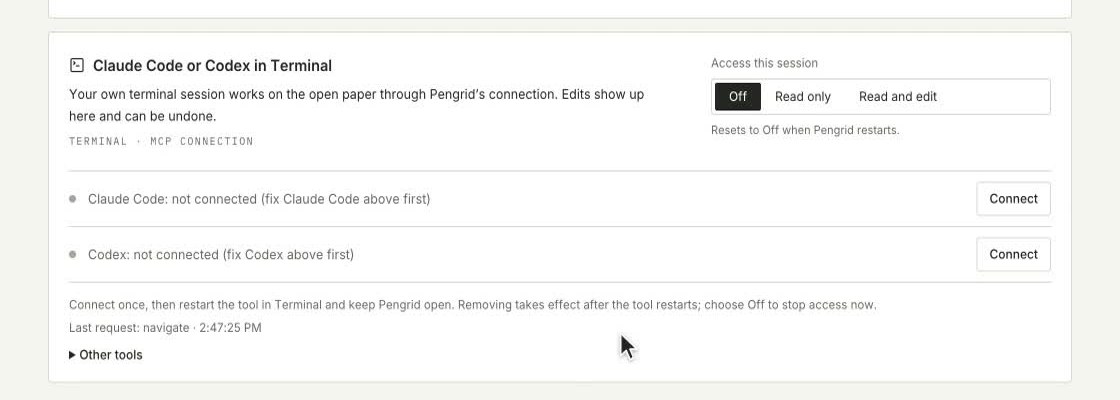
- Under Claude Code or Codex in Terminal, click Connect next to your agent.
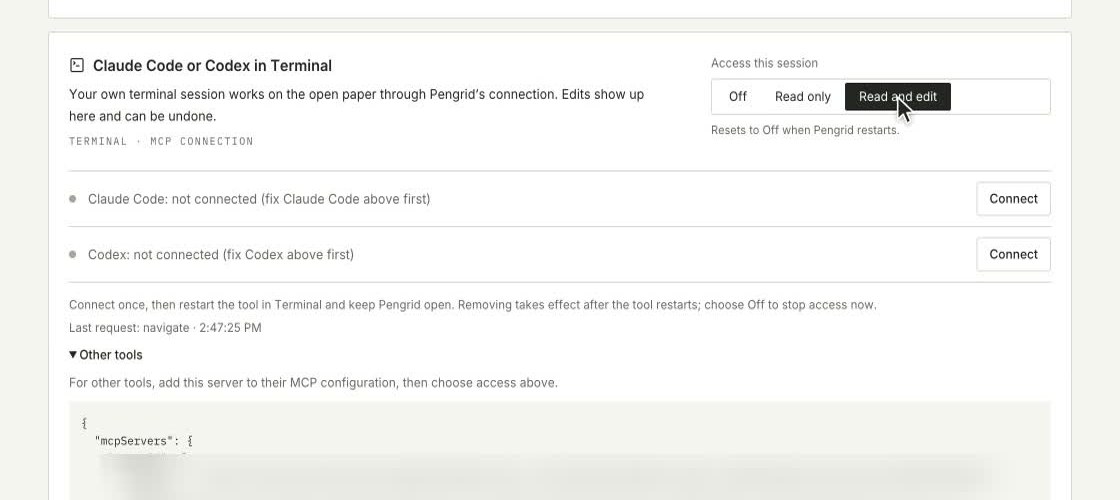
- Using another MCP client? Open Other tools and copy the configuration into that client.
- Restart the agent in your terminal so it picks up Pengrid. You only connect once.
2. Choose what the agent may do
Next to the Connect buttons, Access this session has three choices. Off blocks the agent. Read only lets it read and suggest. Read and edit lets it change the document. Access goes back to Off every time Pengrid starts, so the agent never works without you choosing it that day.
3. Ask for the work
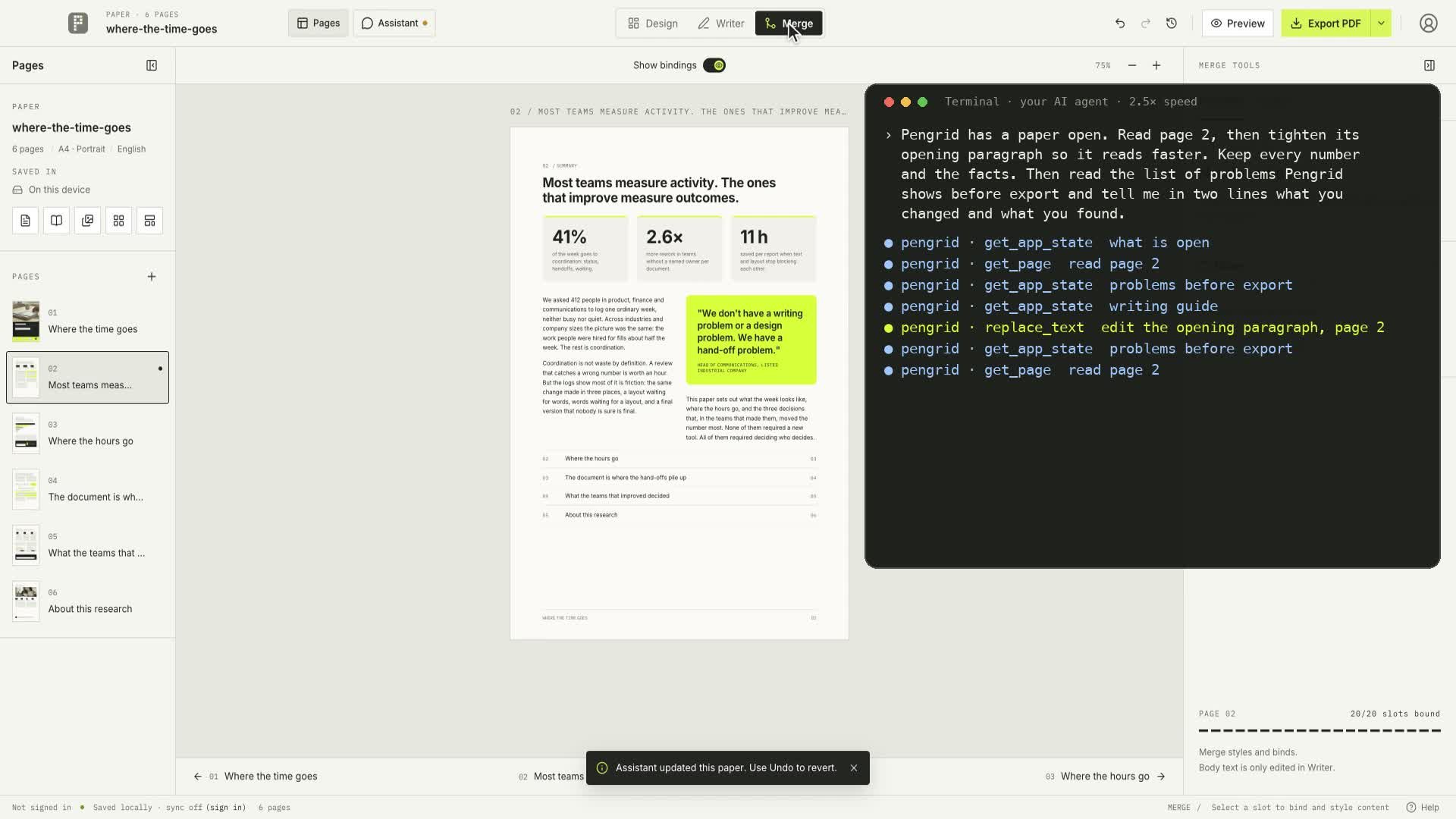
Start a new session in your agent and ask in plain words, as you would ask a colleague. The agent reads the document first, including its writing guide, then makes its changes and checks the result. Some requests that work well:
| You want | Ask your agent |
|---|---|
| A new proposal on brand | "Start a new proposal for Acme from our saved brand, with a cover, a one-page summary, scope, timeline and pricing." |
| This year's report from last year's | "Import last-year-report.pdf from my Documents folder as a new paper, then update every 2025 figure from the numbers I paste below." |
| Sharper writing | "Tighten the summary on page 2 to about 120 words. Keep every number and follow the writing guide." |
| Visuals | "Turn the process on page 4 into a flowchart" or "Make a column chart of these quarterly figures." |
| Another language | "Translate the whole report into German." |
| A clean export | "Fix everything Pengrid lists before export, then tell me what you changed and export a PDF." |
4. Watch, review and undo
- The box the agent is changing glows, and the agent shows up as a participant, so you can follow it page by page.
- Every change it makes is one step in History, marked as the agent's. Undo takes back any of them.
- If new text no longer fits a box, Pengrid tells the agent, and you see the same warning. Nothing overflows quietly.
Get the best-looking results
- Start from your look. A saved brand or last year's PDF gives the agent your colours, fonts and page templates to build with, instead of a blank page.
- Fill in the writing guide. Purpose, readers, key messages and tone in Paper ▸ Overview. The agent reads it before it writes.
- Ask it to check its work. "Take a screenshot of each page you changed and fix anything that looks off" catches layout problems early.
- Keep numbers in data, not prose. Paste figures and ask for a chart, so the chart updates when the numbers do.
Where your text goes
Pengrid never sends your document to its own servers for AI. When an agent is connected, the parts it reads go to that agent's AI service under your own account, and nowhere else. The agent cannot share documents or change your settings, and access is off until you turn it on.
Questions
- Which AI agents work with Pengrid?
- Claude Code and Codex connect in one click from Settings ▸ Assistants. Any other agent that supports MCP works by copying the configuration shown under Other tools.
- Does it cost anything?
- Pengrid is free for one person, including the agent connection. Your agent's AI service is paid or free on its own terms.
- Can the agent break my layout?
- No. The agent changes the words, charts and settings it is asked to, while the page design stays in place. If text stops fitting, Pengrid warns both of you, and every change can be undone.
- Why is access off again after a restart?
- On purpose. Access resets to Off every time Pengrid starts, so an agent can only work in your documents on days you choose to let it.
- Do I need the agent at all?
- No. Pengrid also has a built-in writing assistant that runs on your computer, for rewrites, suggestions while you type and a chat beside the document.