 Pengrid
Help · Brand
Every paper on brand, whoever makes it
Save your brand once. Start every new paper on brand, bring last year's papers into it, and update them all when the brand changes. How saved brands work.
Your brand should not depend on who made the paper. Save your colours, fonts, text styles, logos, page templates and tone of voice once, as a brand such as "Acme" or "Client B". Every new paper starts on brand, older papers can be brought into it, and when the brand changes, every paper linked to it can follow. Pengrid always shows what will change before it does.
What a brand holds
| Goes into the brand | Stays with each paper |
|---|---|
| Colours, with their roles and pairs | The text itself |
| Text styles, and chart, diagram, table and picture styles | Purpose, readers and key messages from the writing guide |
| Fonts, logos, icons and images | Pages and their layout |
| Page templates, grids and shape tokens | |
| The brand half of the writing guide: tone, style, branding and terminology |
Save a brand
- Open the paper whose look you want to keep.
- Open Paper ▸ Overview. The Brand card is there.
- Click Save as brand….
- Give it a name, choose where to save it, and untick any parts you want to leave out.
- Click Save brand.
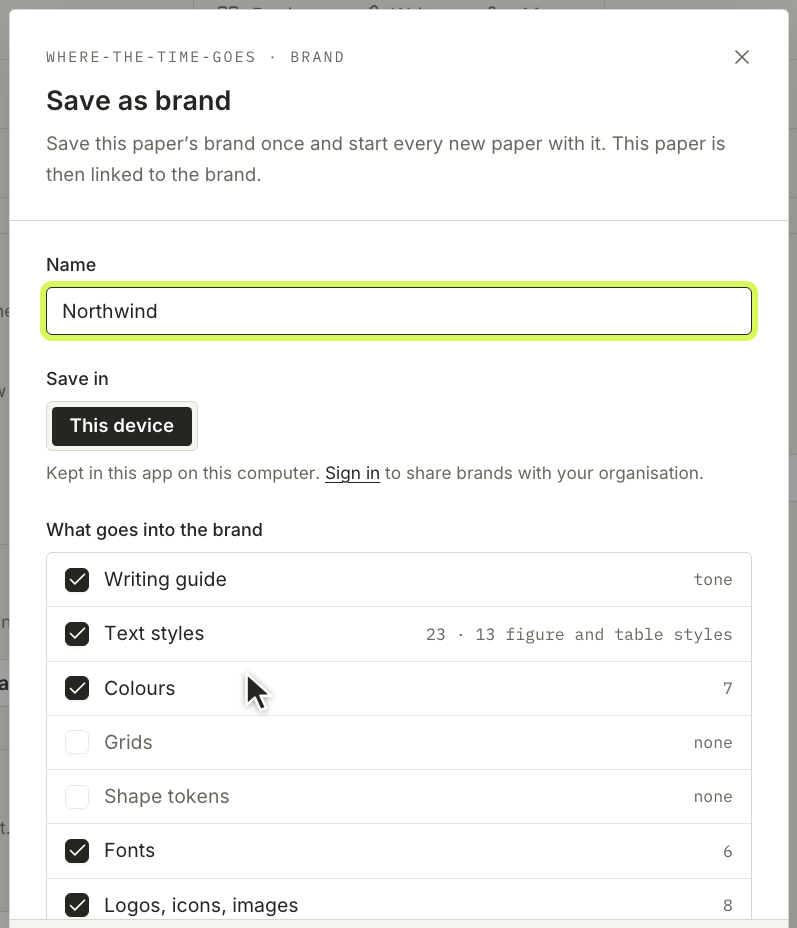
Signed in, the brand is saved to your organisation, so everyone in it can use it. Owners, admins and members can change it; viewers can only use it. Without an account it is saved on this device, and you can move it to your organisation later.
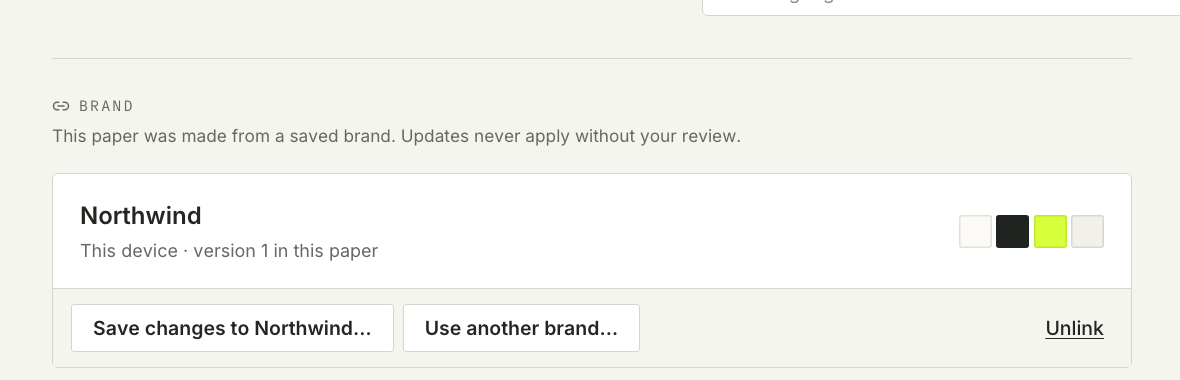
The paper is now linked to the brand. The Brand card shows the brand, its version, and three buttons: Save changes to…, Use another brand… and Unlink.
Start a new paper from a brand
- Open the paper menu (the paper's name, top left) and choose New paper.
- Under Brand, pick one. Your default brand is picked first. Open paper's brand copies the brand of the paper you have open, and None starts blank.
- Name the paper and click Create document.
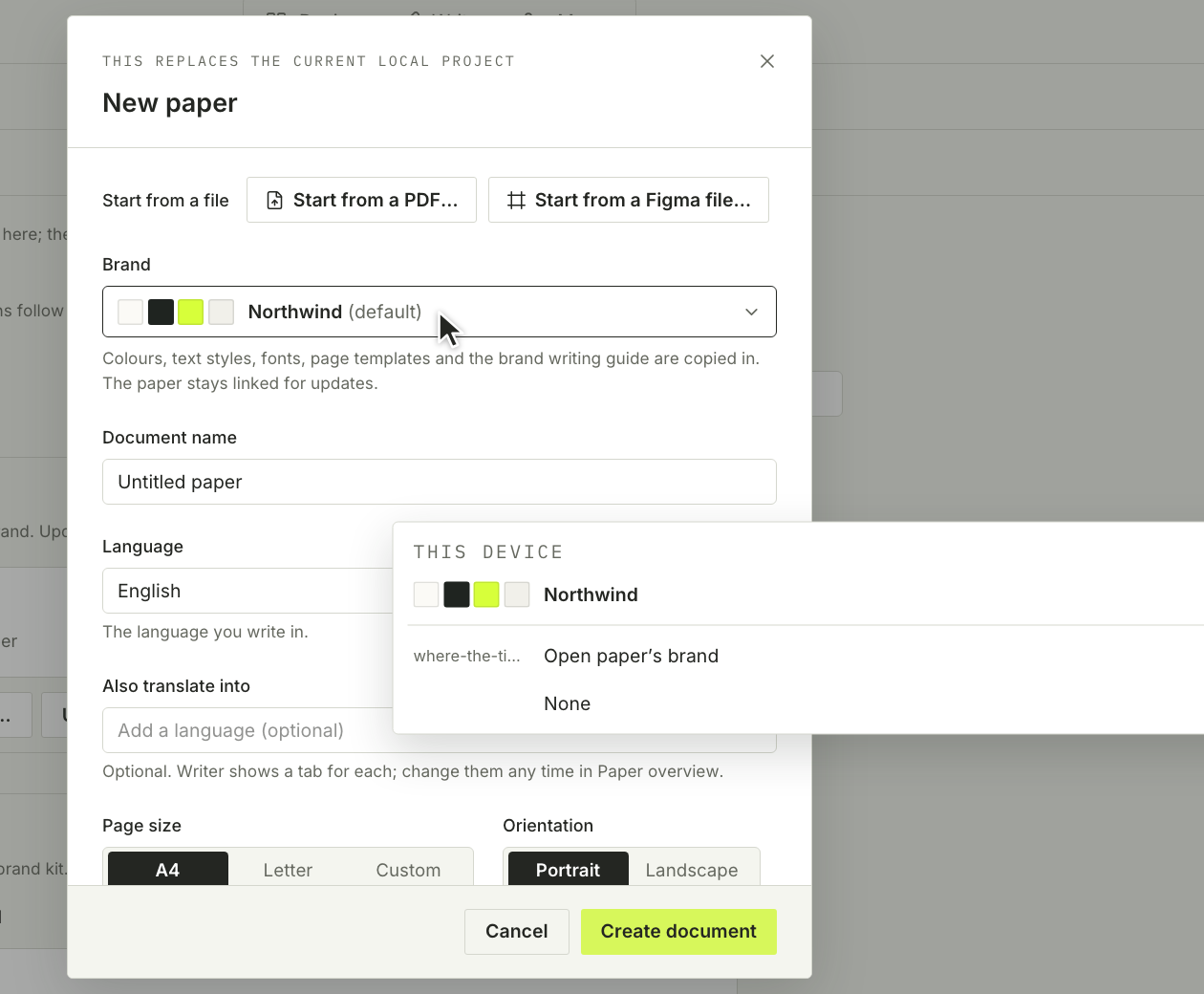
The new paper gets a copy of the brand: colours, text styles, fonts, page templates and the brand's writing guide. Add pages from the brand's page templates in the Pages panel.
Use a brand on a paper you already have
This is how you bring an older paper, or one made for another client, into a brand.
- Open the paper and go to Paper ▸ Overview.
- Click Use a saved brand… (or Use another brand… if it is already linked) and pick the brand.
- Read the review, then click Use brand.
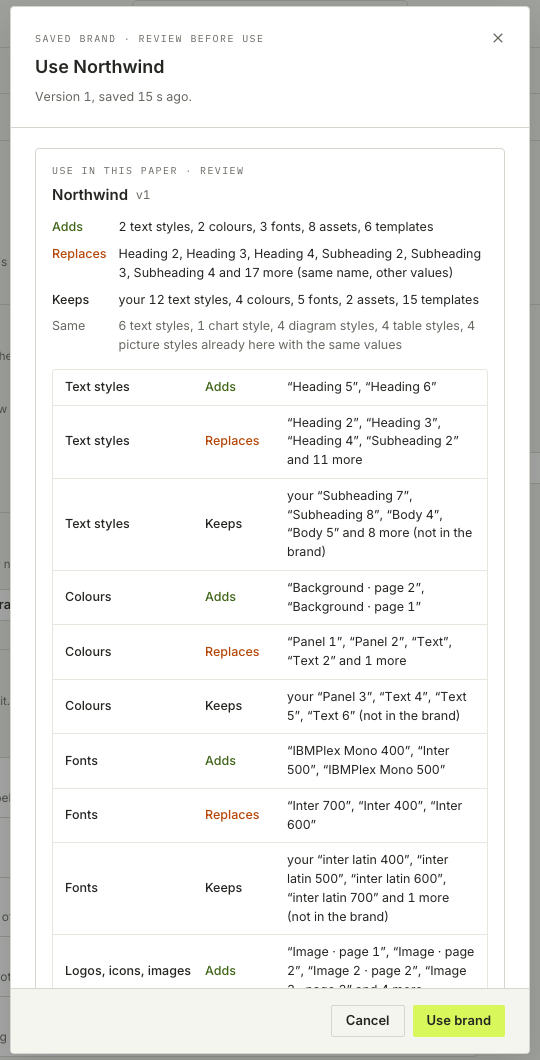
The review lists four kinds of change:
- Adds are styles, colours, fonts and templates the paper does not have yet.
- Replaces are those with the same name in the paper and the brand, where the brand's version wins.
- Keeps are the paper's own styles and colours that are not in the brand. They stay as they are.
- Same means already identical.
Everything on the page that uses a replaced style or colour takes on the brand's version, so headings, body text and panels change their look in one go. It is one step in History, so Undo takes it all back.
Restyling an older paper well
Pengrid matches styles and colours by name. A paper whose styles are called "Heading" and "Body" picks up a brand's "Heading" and "Body" straight away. A paper imported from a PDF, or one made with other names, mostly gets the brand added beside its own styles, and its pages keep their look until they use the brand's styles.
- In Universal design, look at the paper's text styles and colours, and rename the ones that should follow the brand to the brand's names, for example "Heading 2" to "Heading".
- Then use the brand. The renamed styles are replaced, and everything that uses them changes.
- Check the pages in Preview, and fix anything that still uses an old style.
Before you use a brand on an important paper, save a copy of it (paper menu ▸ Save) so you can compare.
When the brand changes
When someone saves changes to a brand, papers linked to it show "<brand> was updated · Review" in Paper ▸ Overview, and a small dot on the paper menu. Click Review to see what the update adds, replaces and keeps, then apply it. Nothing changes until you do, and a paper's purpose, readers and key messages are never touched.
Changed the look in this paper and want the brand to have it? Click Save changes to… in the Brand card. You see what the brand gains or loses before you save. If someone else saved the brand first, Pengrid tells you and lets you review their update before you save again.
Manage your brands
Open Brands… from the account menu or the Brand card. Each brand shows its colours and logo. From there you can rename a brand, set the default, delete it, move it to your organisation, and import or export a brand as a zip file. Deleting a brand leaves the papers that used it as they are.
Ask your AI to do it
If your AI is connected to Pengrid, it can list and read your brands, start a paper from one, use a brand on the open paper, take in a brand's update, and save changes to a brand when you ask. It always shows you the review first.
Questions
- Does using a brand change my text?
- No. A brand changes styles, colours, fonts, images and templates. Your words, and the paper's purpose, readers and key messages, stay as they are.
- Can I undo using a brand?
- Yes. Using a brand or taking in an update is one step in History, so Undo takes it back.
- Can I have several brands?
- Yes, for example one per client. One of them is your default and is picked first when you start a new paper.
- Do I need an account?
- No. Without an account, brands are saved on this device. Sign in to share them with your organisation.
- Will my papers change by themselves when the brand changes?
- No. Linked papers show that an update is waiting, and nothing changes until you review it and apply it.